Help
User guide
How to use DOMWIDE step by step: find, visit and buy a home, become an agent or publish a development. The guide is updated with every change to the website.
Chapter 1
Welcome to DOMWIDE
DOMWIDE brings together new-build developments, resale homes, trusted professionals and the support you need to buy a home in another country with peace of mind.
What you can do on DOMWIDE
- Discover market areas and selected developments in several countries.
- Visit the home you like: you request the visit and follow it from your account.
- Buy through a guided process: request, reservation, documents, financing, contract and title deed.
- Work with professionals: lawyers, notaries, tax advisors, banks, sworn translators and architects.
- Sell and market homes if you are an agent, a developer or you work for a company in the sector.
How to use this guide
Button, menu and tab names appear in bold, exactly as you see them on screen; for example, Book a viewing. They are taken from the website itself, so the guide changes when the website changes.
Chapter 2
Exploring domwide.com
You do not need an account to explore. Everything in this chapter is open to every visitor.
Your first visit
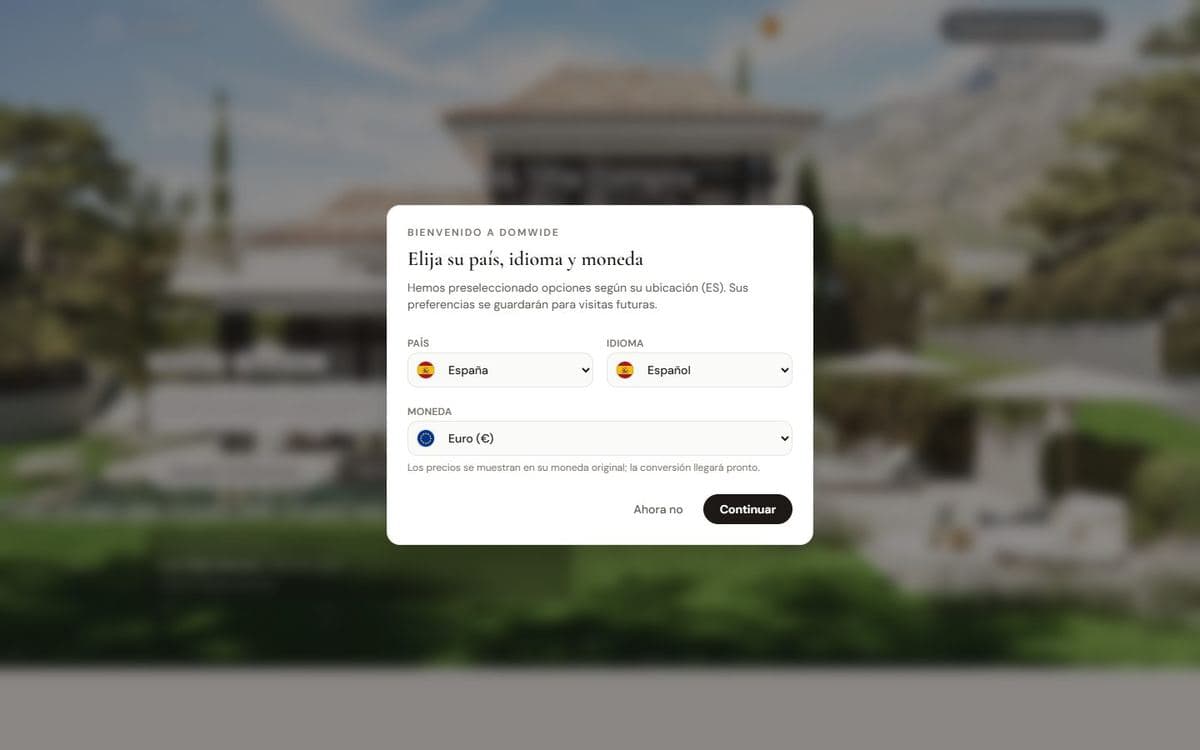
The first time you visit, DOMWIDE suggests a country, language and currency based on your location. Check them and press Continue, or Not now to decide later. Your preferences are kept for future visits and you can change them from the header.
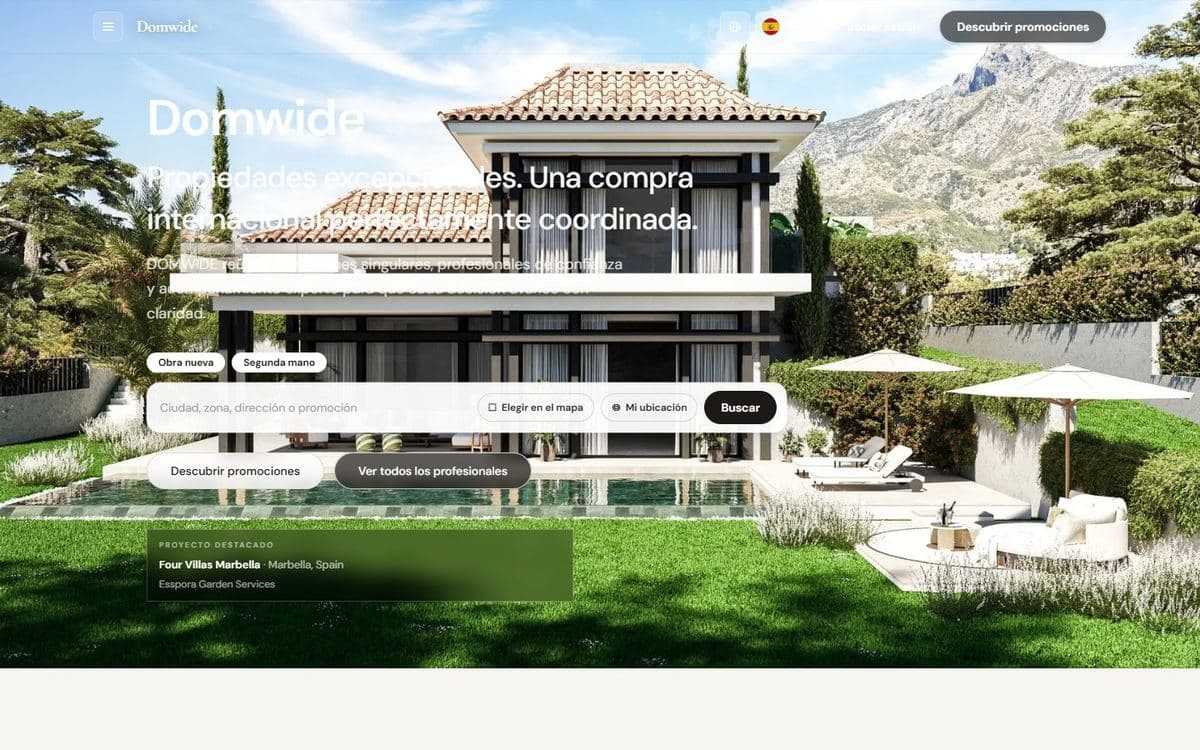
The search on the home page
- 1Choose what you are looking for: New build or Resale.
- 2Type a city, an area, an address or the name of a development, or use Choose on the map to mark the area you like. With My location you search around where you are.
- 3Press Search to see the results.
From the home page you can also go straight to Discover developments or Browse all professionals.
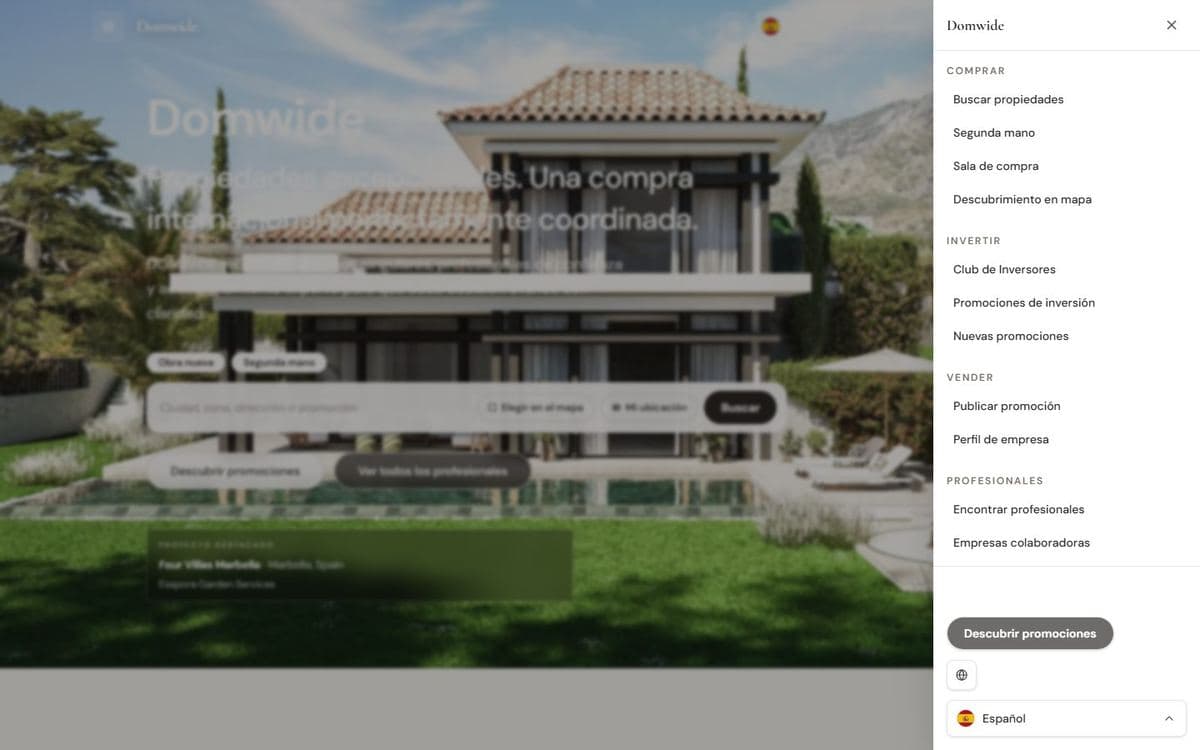
The main menu
The menu button (Open menu), at the top left, opens every section of the website:
| Section | What you find |
|---|---|
| Buy | Search, compare, and acquire residential property.Search properties · Resale homes · Purchase hall · Map discovery |
| Invest | Off-plan, yield, and portfolio opportunities.Investors Club · Investment promotions · New developments |
| Sell | List developments and reach international buyers.Publish promotion · Company profile |
| Professionals | Verified advisors, lawyers, and specialists.Find professionals · Partner companies · Real estate agents |
| Developments | New-build promotions and off-plan inventory.All developments · Resale homes · Market areas |
| Countries | Market guides and country operations.Spain · Portugal · France · Italy · Switzerland · UAE · United States · United Kingdom · Greece · Mexico · Germany |
| Services | Legal, banking, relocation, and transaction services.Services hub · Transaction support · Guides & insights |
| Company | About DOMWIDE, partners, and corporate information.About DOMWIDE · Company directory · Sign in |
The header also has the language selector, Log in and Discover developments.
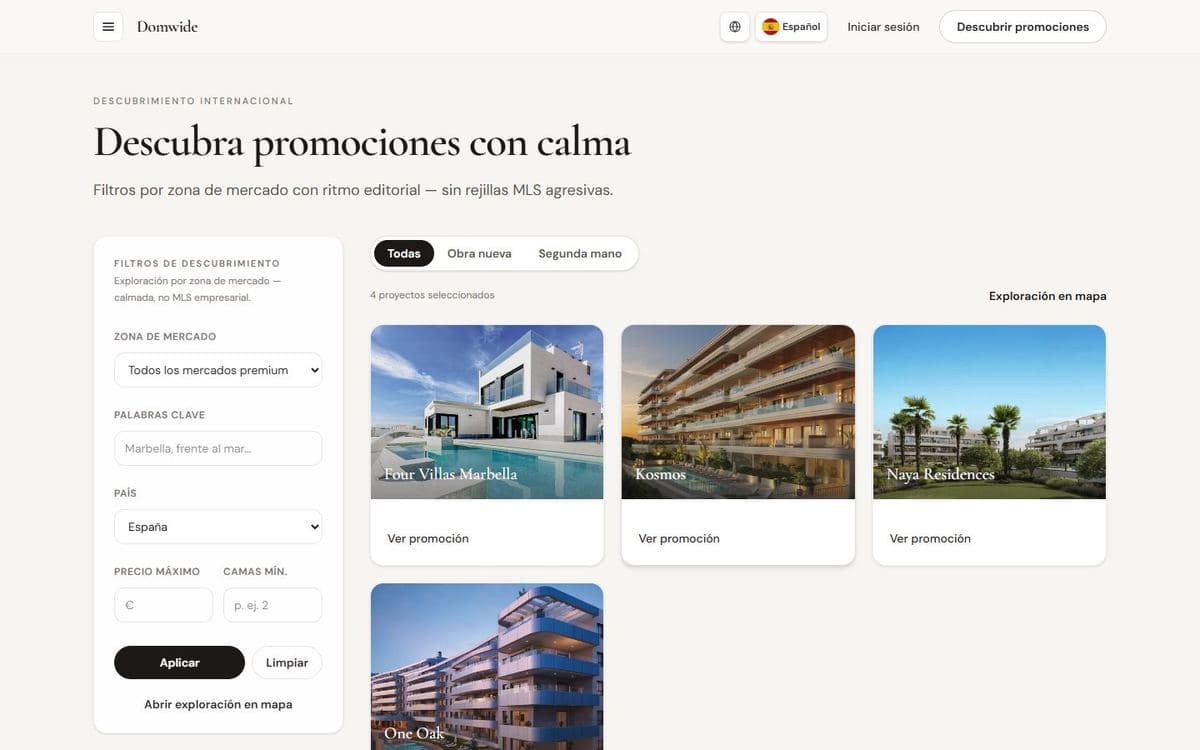
Searching developments
In the results you filter by market area, keywords, country, maximum price and minimum number of bedrooms. Press Apply to filter, Clear to start again, and Open map exploration to see the developments on the map.
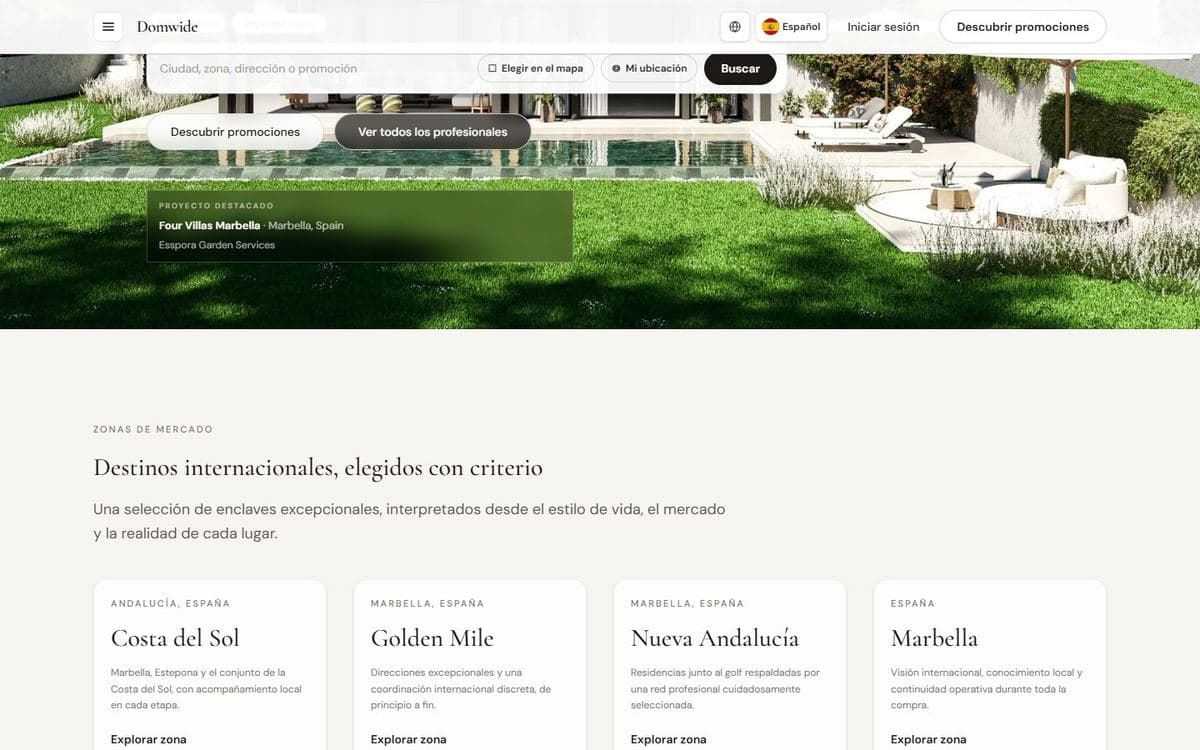
Market areas
Market areas present each destination through its lifestyle, its market and its local reality. Press Explore area to see its developments, its context and the professionals who work there.
Professionals and companies
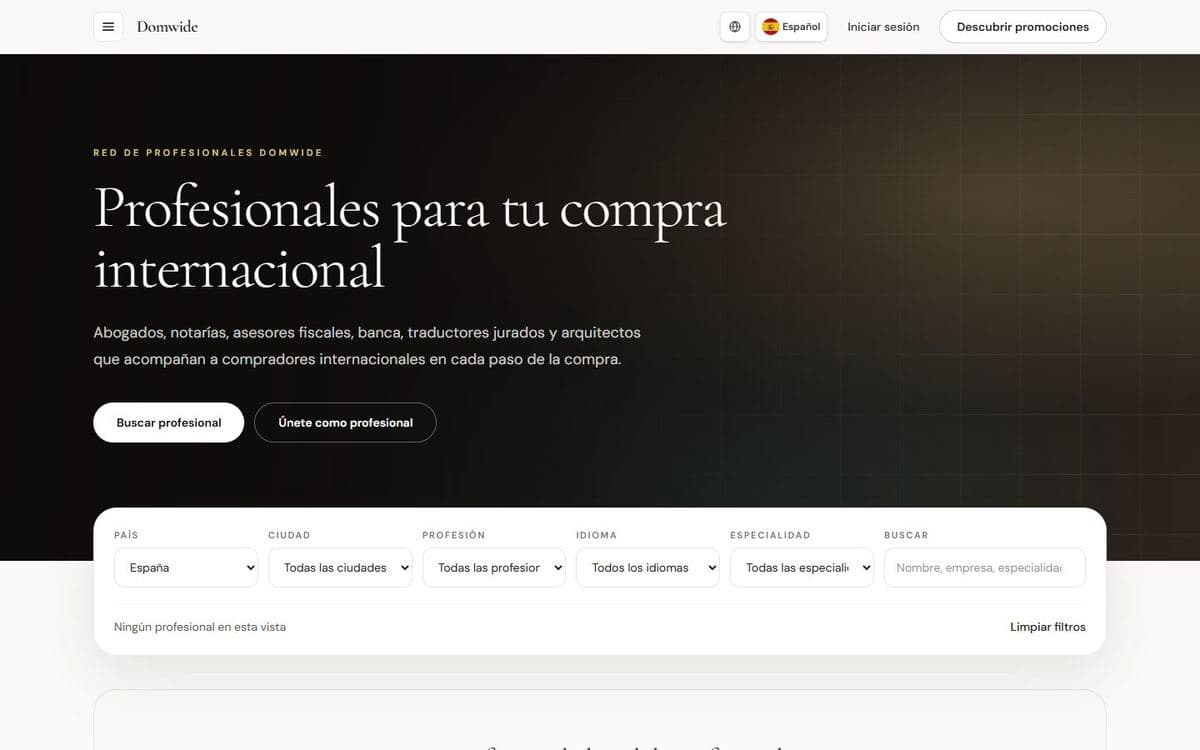
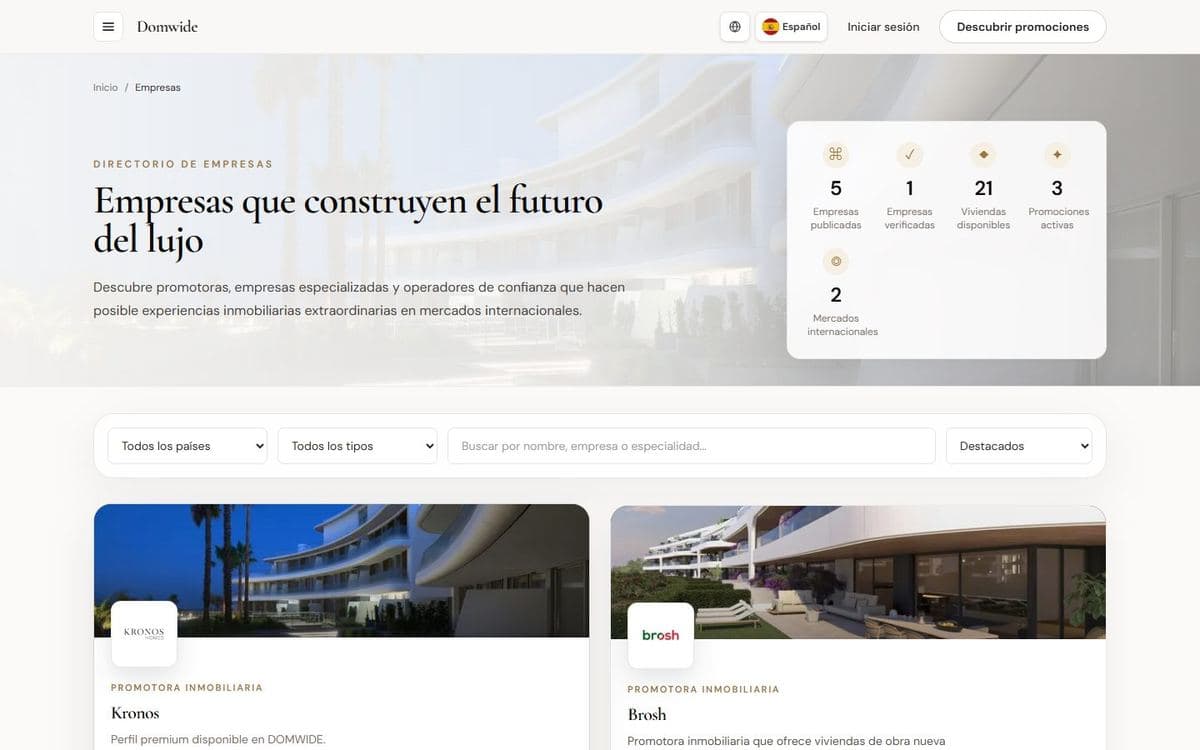
In the professionals directory you filter by country, city, profession, language and specialty. If you are a professional, press Join as a professional. The companies directory lists developers, agencies and other companies, with their profile and their developments.
The website on your phone
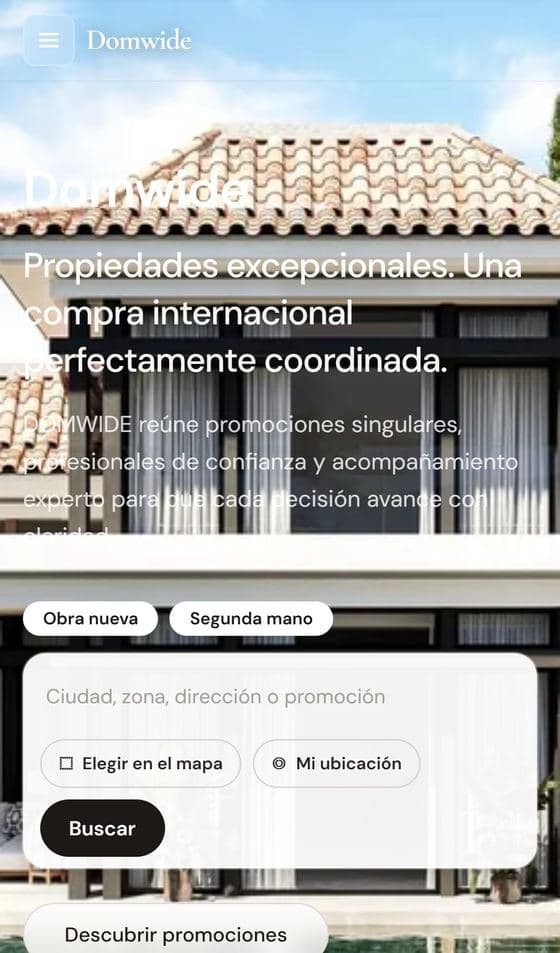
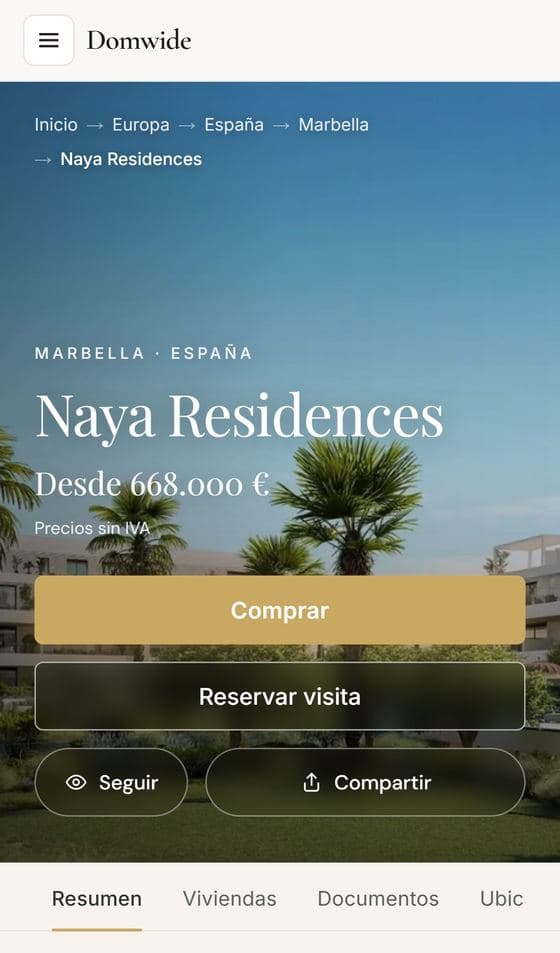
domwide.com adapts to your phone: the menu opens with the same button, and the buttons of each development span the width of the screen, within easy reach of your thumb.
Chapter 3
Creating your account and signing in
The account is free. With it you follow your visits, save developments, receive alerts and, when the time comes, manage your purchase.
Signing in
- 1Press Log in in the header.
- 2Choose I’m a client or I’m a professional.
- 3Type your email address and press Continue.
If you have a passkey, you can sign in with it, without a password; the button depends on your device (for example, Sign in with Windows Hello). If you forgot your password, press Forgot your password? and we will send you a link to choose a new one.
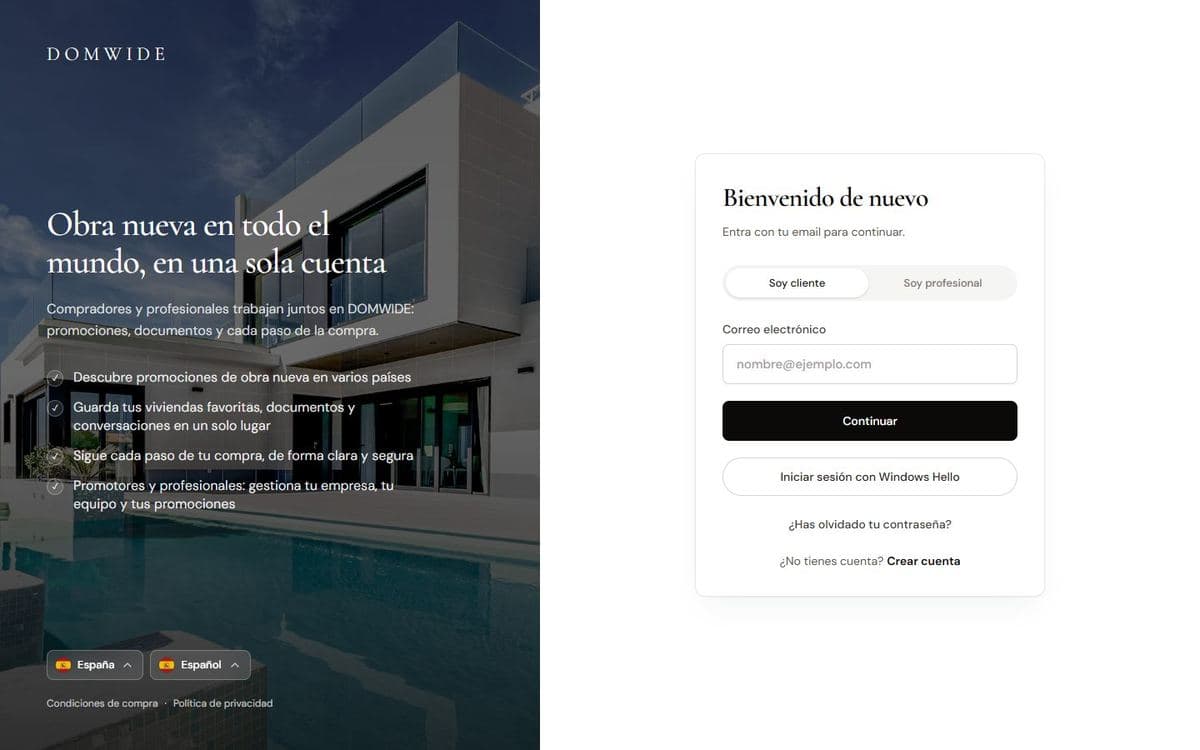
Creating your account
- 1On the sign-in screen, press Create account.
- 2Enter your details and choose a password.
- 3Open the email we send you and click the link to verify your address.
- 4Sign in. The first time, a welcome screen helps you complete your profile.
Chapter 4
A development page
Every development has its own page, with photos, description, location, specifications, documents and the homes you can buy.
Main buttons
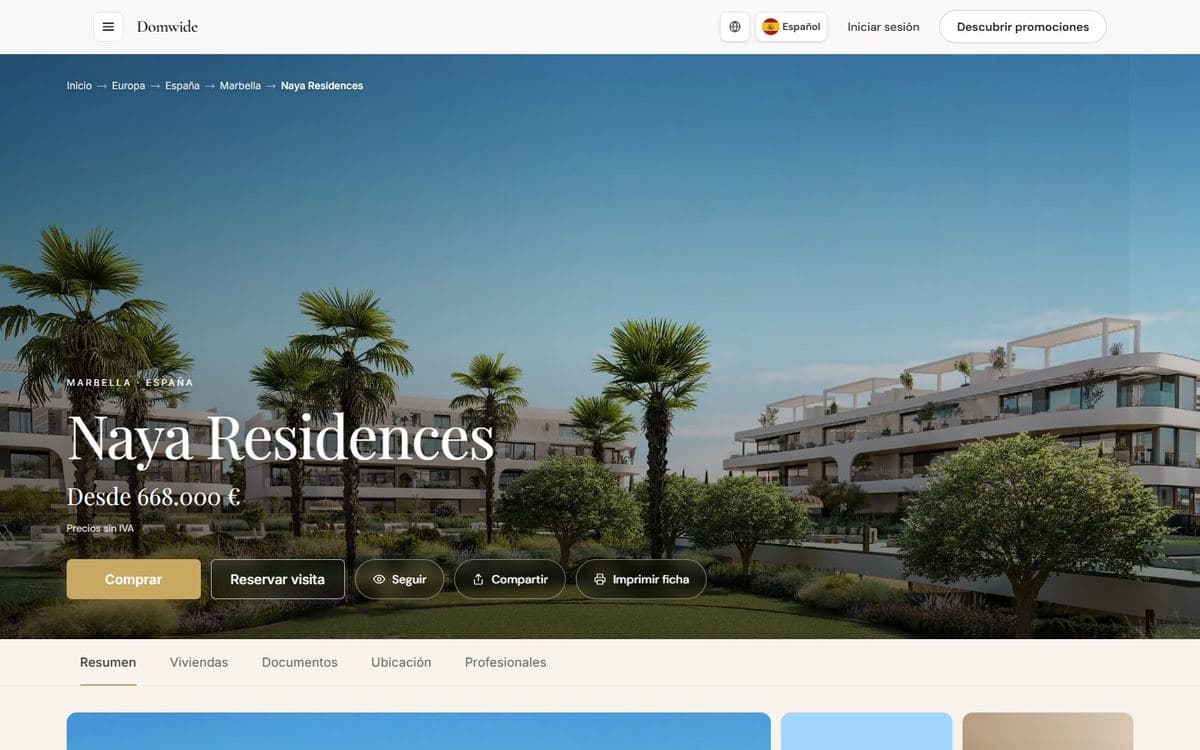
- Buy: takes you to the list of homes so you can choose one.
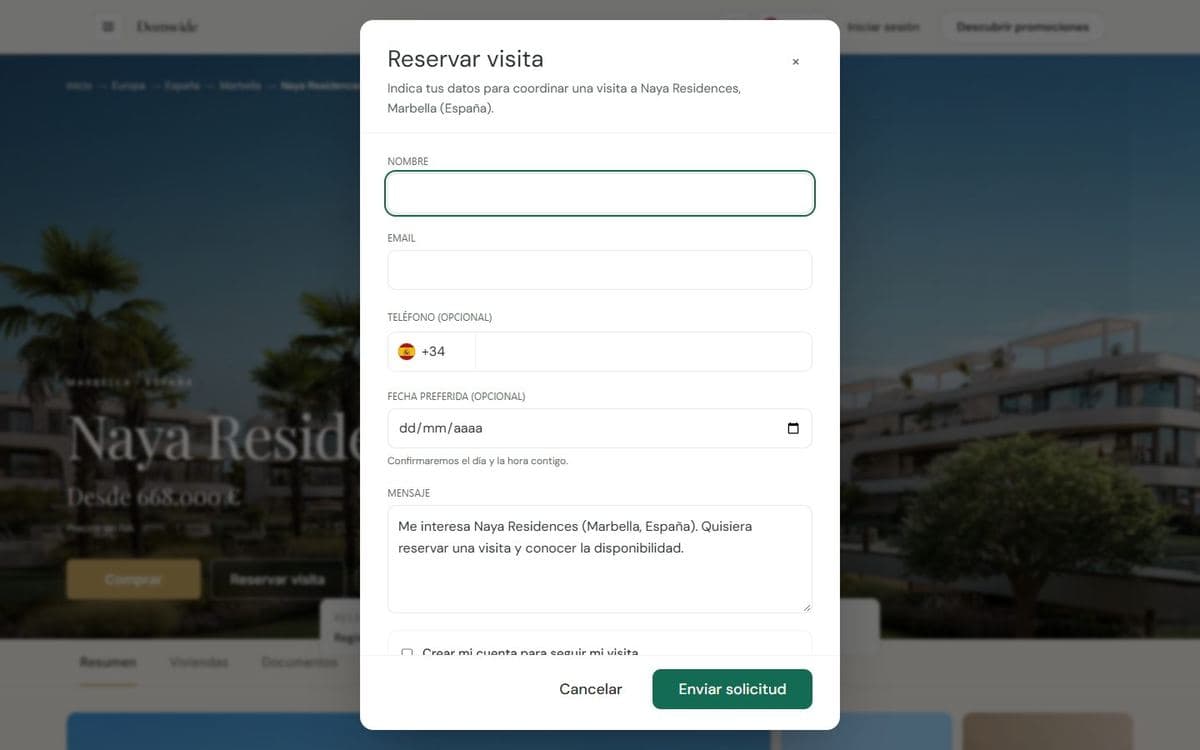
- Book a viewing: requests a private visit.
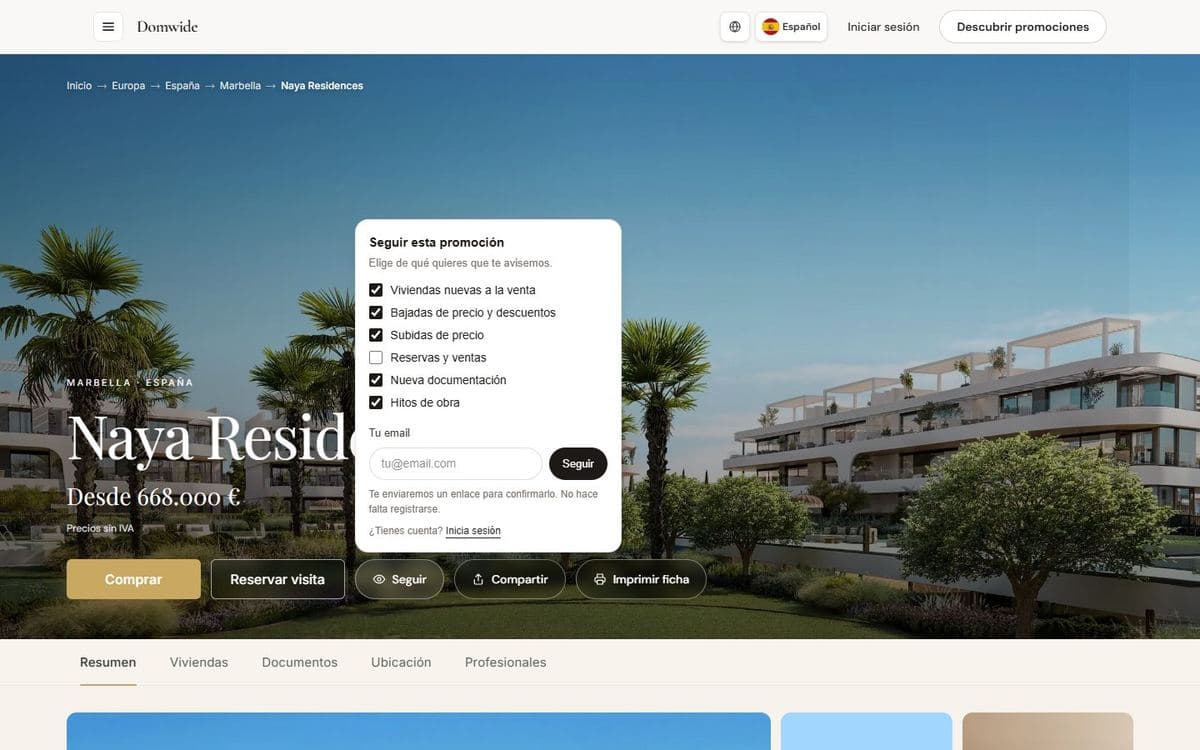
- Follow: alerts you to the news you choose.
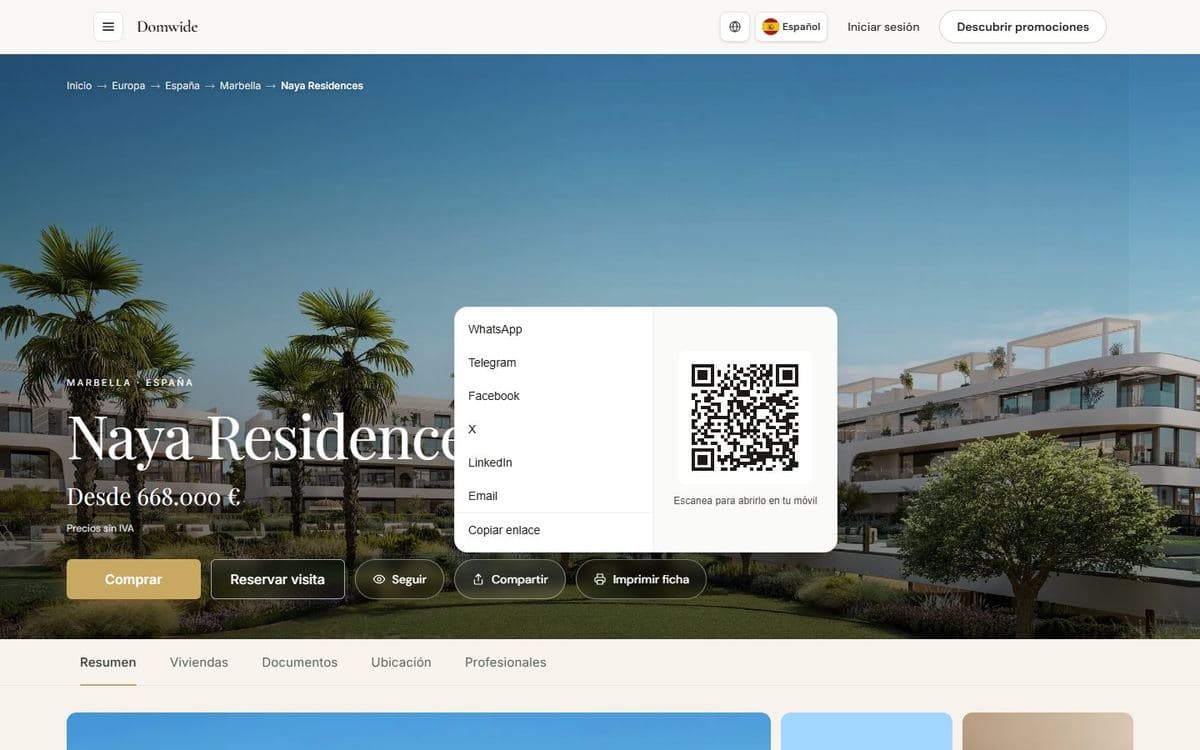
- Share: sends the development or shows its QR code.
- Print sheet: prepares the development sheet for printing.
Below the header, the Overview, Units, Documents, Location and Professionals tabs take you to each part of the page. If the price shows as Price on request, ask for information to learn it.
The homes
The list of homes shows each one with its floor area, bedrooms, bathrooms, price and status:
| Status | What it means |
|---|---|
| Available | You can request to buy it. |
| Reserved | Another buyer has reserved it. |
| Sold | It is no longer on sale. |
| Under offer | There is an offer in progress on this home. |
| Coming soon | It goes on sale soon. Follow it to find out. |
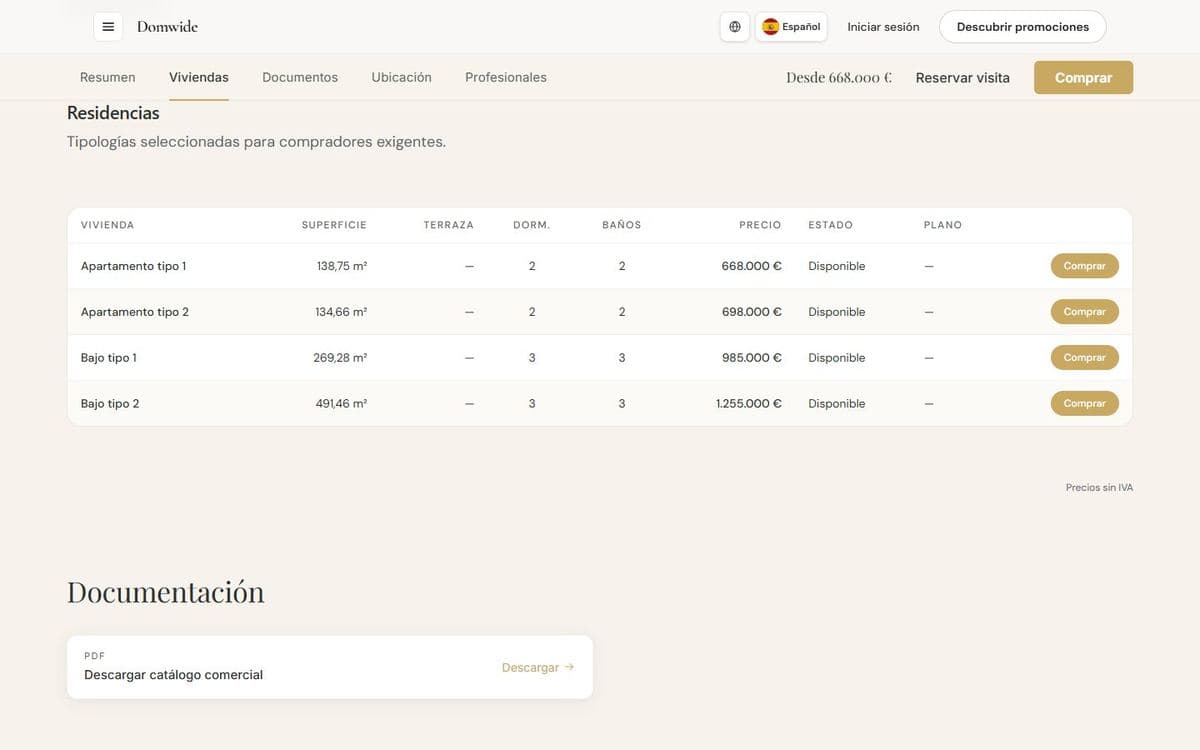
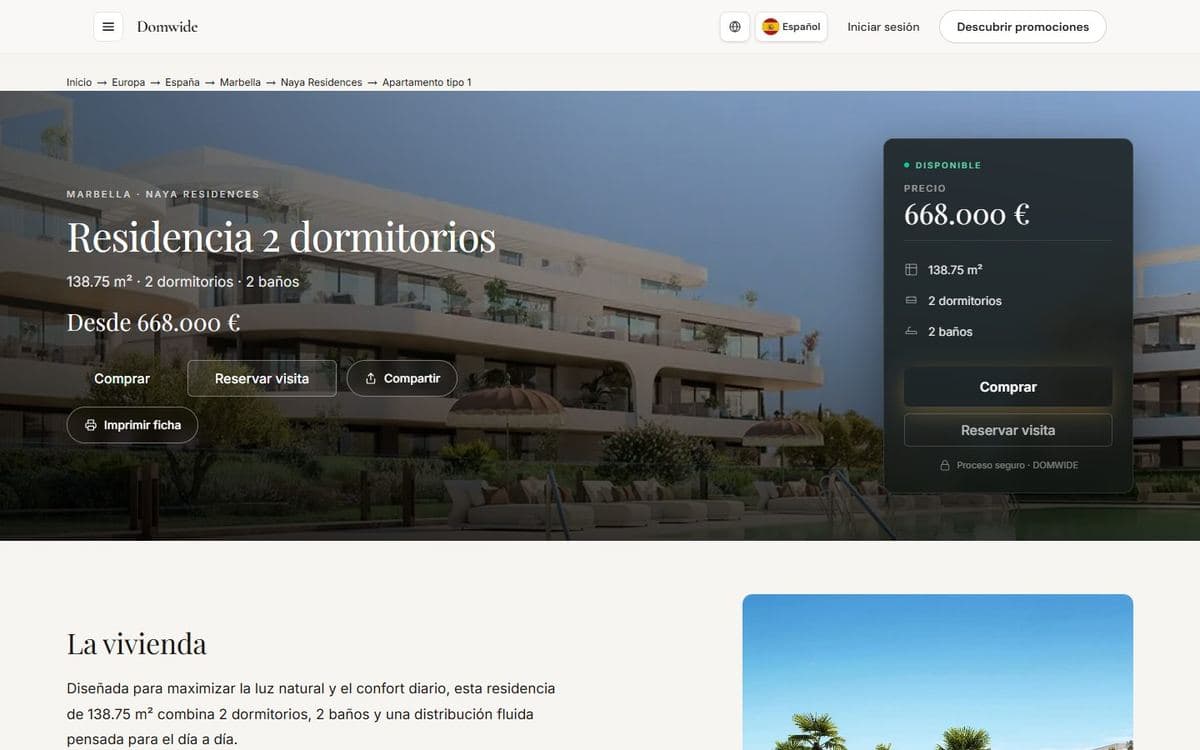
Press a home to open its page. There you have Buy this home, Book a viewing and Request information. If the home is no longer free, use Request a similar alternative or See similar homes. Documents, such as the sales brochure, are downloaded with Download.
Following a development or a home
- 1Press Follow on the development or on a home.
- 2Choose what you want us to alert you about.
- 3Press Save. If you have no account, enter your email: we send you a link to confirm it and you do not need to register.
| If you follow… | We can alert you about… |
|---|---|
| A development | New homes for sale · Price drops and discounts · Price increases · Reservations and sales · New documents · Construction milestones |
| A home | Price changes · Reserved or sold · Available again · New documents |
Sharing
With Share you send the development or a home through any of these channels:
- Share from phone
- Telegram
- X
- Copy link
- QR
Chapter 5
Requesting a visit
Request a private visit to the home you like. We confirm the day and time by email.
How to request it
- 1On the development or on a home page, press Book a viewing.
- 2Enter your name and email and, if you like, your phone, your preferred day and a message.
- 3If you want to follow the visit from your account, tick Create my account to follow my visit.
- 4Press Send request. If you are not signed in, we send you an email to confirm the request: open the link within 48 hours.
With your account, the visit appears in My visits, where you can ask for another day, cancel it or write to the sales team.
Chapter 6
How buying works
A purchase starts with a request and ends with the signing of the title deed. At every stage you know what comes next and who has to act.
Requesting the purchase
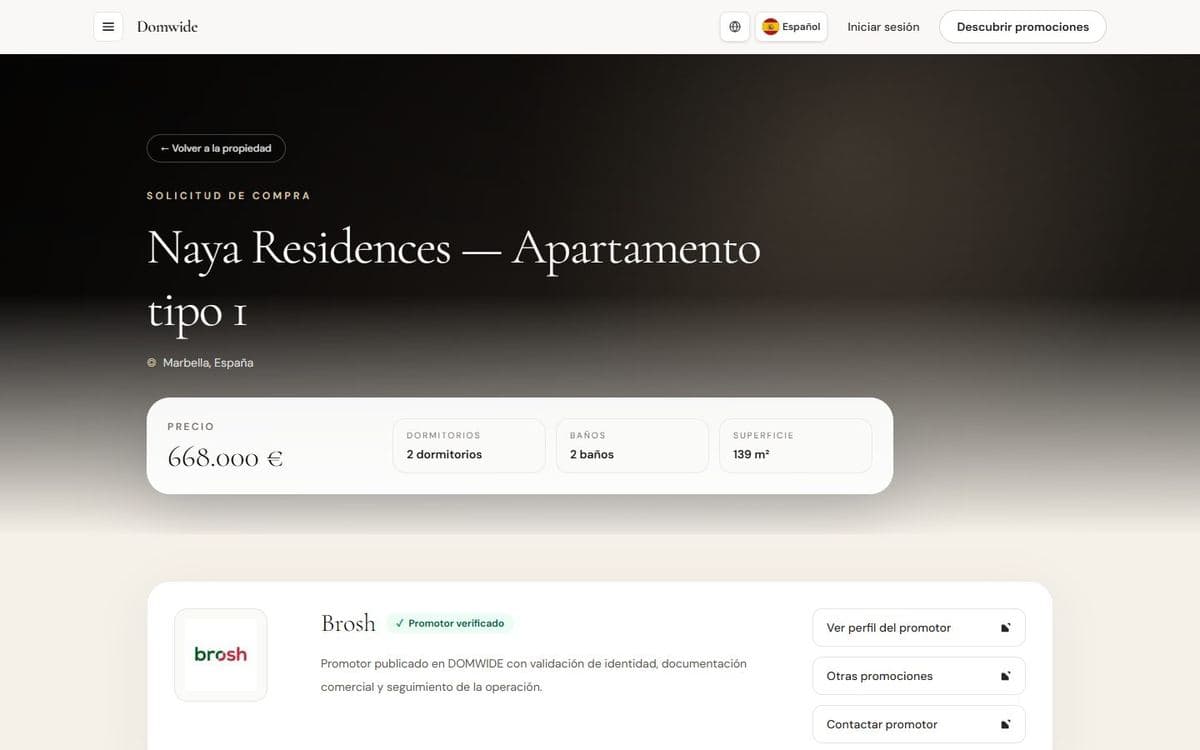
- 1Open the page of the home you like and press Buy this home.
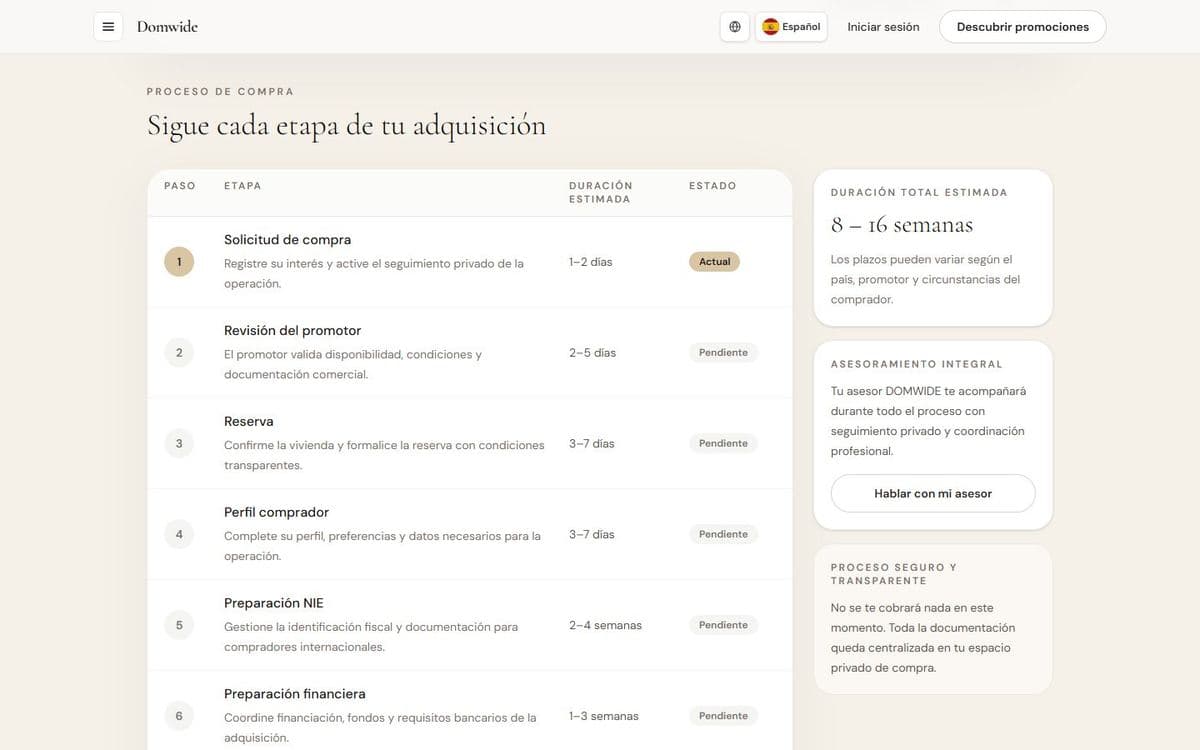
- 2In Purchase request, check the home, the developer and the purchase process, with the estimated duration of each stage.
- 3Press Request purchase →. If you do not have an account yet, create it with Create account.
The stages and their timing
These are the stages of a purchase and their estimated duration. Timing can vary with the country, the developer and your circumstances.
| Stage | What happens | Estimated duration |
|---|---|---|
| 1. Purchase request | Register your interest and activate private operation tracking. | 1–2 days |
| 2. Promoter review | Promoter validates availability, terms and commercial documentation. | 2–5 days |
| 3. Reservation | Confirm the home and formalise reservation with transparent terms. | 3–7 days |
| 4. Buyer profile | Complete profile, preferences and data required for the operation. | 3–7 days |
| 5. NIE preparation | Manage tax ID and documentation for international buyers. | 2–4 weeks |
| 6. Financial preparation | Coordinate financing, funds and banking requirements. | 1–3 weeks |
| 7. Private contract | Review and sign private purchase contract with professional assistance. | 1–2 weeks |
| 8. Deed | Close at notary and receive keys to your new residence. | 2–4 weeks |
The developer's answer
Depending on how the development is set up, DOMWIDE reviews your request before sending it to the developer, or the developer receives it directly. The developer can accept it, offer you an alternative or decline it. Once it is accepted, you pay the reservation deposit and the home is reserved for you. From your account you follow every stage, its documents and its messages.
Your payment calendar
When the promoter accepts your offer, Payments and dates appears in your purchase room: every payment with its date, its amount including VAT and its status, how much you have paid and which payment comes next. Until the private contract is signed, the dates are an estimate; once it is signed, the calendar is fixed and any payments already due are added to the payment on signing.
Chapter 7
Becoming an agent
If you work in real estate, you can join the DOMWIDE agent network.
How to apply
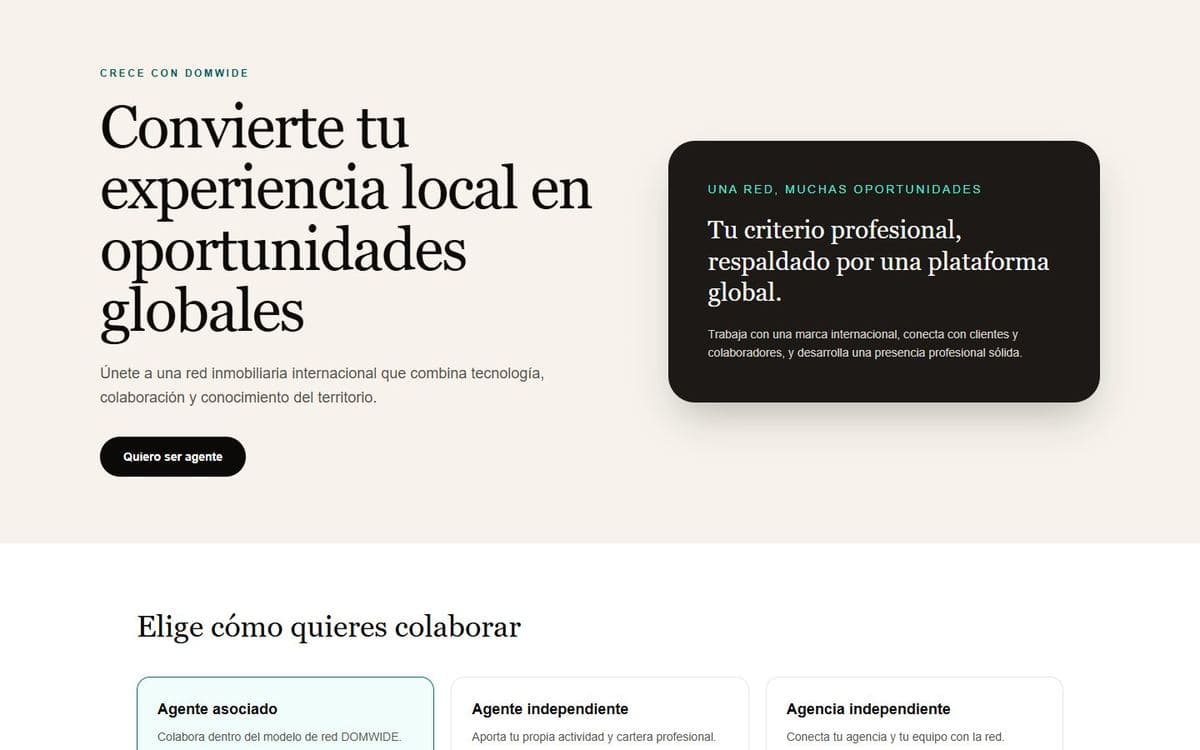
- 1In the main menu, open Professionals → Become an agent and press I want to become an agent.
- 2Choose how you want to work with us. The models are in the table below.
- 3Create your professional account: full name, email, password, where you live and the language you prefer us to contact you in.
- 4Verify your email and complete your application. If it is a good fit, DOMWIDE prepares your onboarding.
| Model | What it means |
|---|---|
| Associate agent | Work within the DOMWIDE network model. |
| Independent agent | Bring your own professional activity and portfolio. |
| Independent agency | Connect your agency and team to the network. |
Once your application is sent, you can read the Agent handbook, with the rules on clients, protection and commissions. Buyers find agents in Professionals → Real estate agents.
Chapter 8
Publishing a development
Developers and other companies present their profile and publish their developments from the professional area.
Getting started
- 1Sign in and, in the user menu, press Register my company or, if your company is already on DOMWIDE, Join a company.
- 2To start straight away with a development, open Sell → Publish promotion in the main menu.
- 3Invite your team: each person receives an invitation by email.
The development wizard
The wizard guides you step by step and explains why each step matters. Anything marked Required to publish is essential; anything marked Improves quality makes your development look better.
| Step | Why it matters |
|---|---|
| 1. Basic details | The name is the first thing buyers see, and we use it in search engines and links. |
| 2. Location | Without a location buyers cannot find your development on the map or in searches by area. |
| 3. Description | The short description appears on the cards; without it the development cannot be understood at a glance. |
| 4. Photos and documents | Developments without photos are not published: buyers need to see what they are buying. |
| 5. Typologies and homes | Without at least one home with a price there is nothing to sell or reserve. |
| 6. Contact and team | This is the person who receives buyers’ questions and offers. |
| 7. Review and publish | When everything required is in green you can publish. |
On the first step press Create draft and continue; on the others, Save and continue. If you try to leave with unsaved changes, the wizard warns you.
Chapter 9
Frequently asked questions
Quick answers to the most common questions.
Does creating an account cost anything?
No. The account is free.
Do I pay anything when I request a purchase?
No. Nothing is charged when you send the request. The reservation deposit is paid later, once the developer accepts it.
How long does a purchase take?
It depends on the country, the developer and your circumstances. The chapter “How buying works” shows the estimated duration of each stage.
The home I want is reserved or sold. What can I do?
Press Request a similar alternative or See similar homes. You can also follow it with Follow: we will tell you if it becomes available again.
Can I follow a development without registering?
Yes. Press Follow, enter your email and confirm it with the link we send you.
I cannot find the email to confirm my visit.
Check your spam folder. The link works for 48 hours; if it expires, request the visit again.
How do I change the language or the currency?
With the selector in the header. The first time you visit, DOMWIDE suggests a country, language and currency.
How do I contact DOMWIDE?
With Request information on a home page, with Talk to my advisor when you request a purchase, or from the help page.